NOTE ON SOURCESThis toolchain was created over several months (March-June 2026) with the use of Anthropic Claude as well as significant notes I had previously taken on the structure of Steel Panthers scenarios; plus the preserved source code for previous attempts at making SP Map Converters by Fred Chlanda: SP1 To SPWW2 by Fred Chlanda (726 kb ZIP) SPWW2 Map Source by Fred Chlanda (63 kb ZIP) Full Sources for this page's SPCONV toolchain (3~ MB ZIP) [v1.1] – download this, extract it to a folder on your hard drive, and you can run this locally. |
Here are the steps in the full toolchain to convert scenarios from SP1 or SP2 into “modern” SPCAMO SPWW2 or SPMBT scenarios:
https://archive.org/details/wargamer-depot_steel-panthers
https://archive.org/download/wargamer-depot_steel-panthers
(Click on View Contents for the big ZIP file – there are a lot of scenarios packs zipped up; i.e. [Bonus/Scen_Hapshott/SP1_Hapshott_East_Front_1943.zip]
https://archive.org/details/wargamer-depot_steel-panthers-II-modern-battles
https://archive.org/download/wargamer-depot_steel-panthers-II-modern-battles
(Click on View Contents for the big ZIP file – there are a lot of scenarios packs zipped up; i.e. [Bonus/Scenarios/SP2_Hapshott_Europe.zip]
Both archives contain pre-sorted Scenario ZIP collections that you can load in the next step.
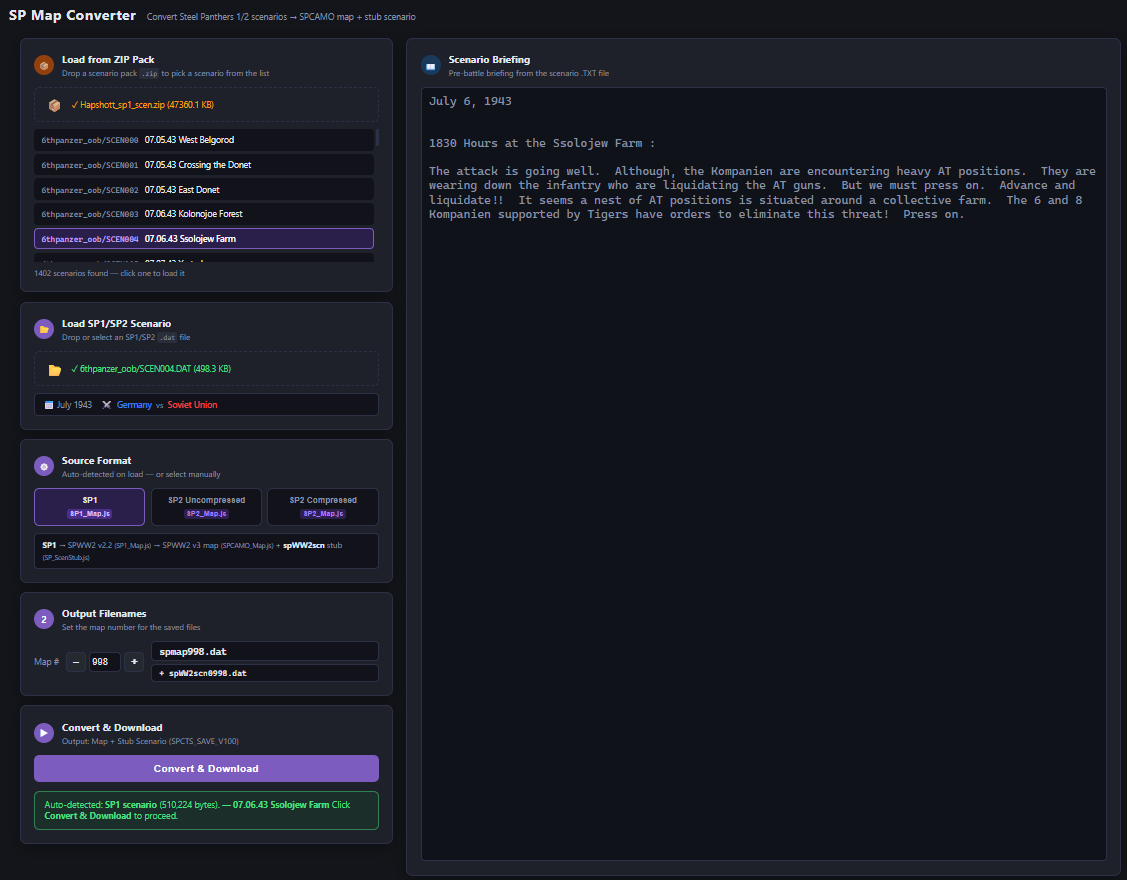
Load your scenario or select it from a ZIP pack; you should see it automatically detect the format of the DAT file:
SP1, SP2 Uncompressed, or SP2 Compressed.
It will also tell you the month/year and who is Player 1 (P1) and Player 2 (P2), along with the scenario briefing.
You go to #2 OUTPUT FILENAME and select the number you want it to be output to.
I like using 999 as it's very uncommon and won't (usually) cause collisions in installed SPCAMO games (you can always rename it later).
You then click on
Your web browser may ask you if you want to allow/download multiple files. Say yes.
Inside your /DOWNLOADS directory will be:
spWW2scn0999.dat (or spMBTscn0999.dat) [Stub Scenario File with Converted Map in it]
spmap999.dat [Converted Map in Mapfile format]
Original Scenario DAT
Original Scenario CMT (if present)
Original Scenario TXT (if present)
Load
and within it, load the Original Scenario DAT file in question (either by clicking on the screen or dragging a DAT file onto the browser window).
A successful load will show you a screen similar to this:
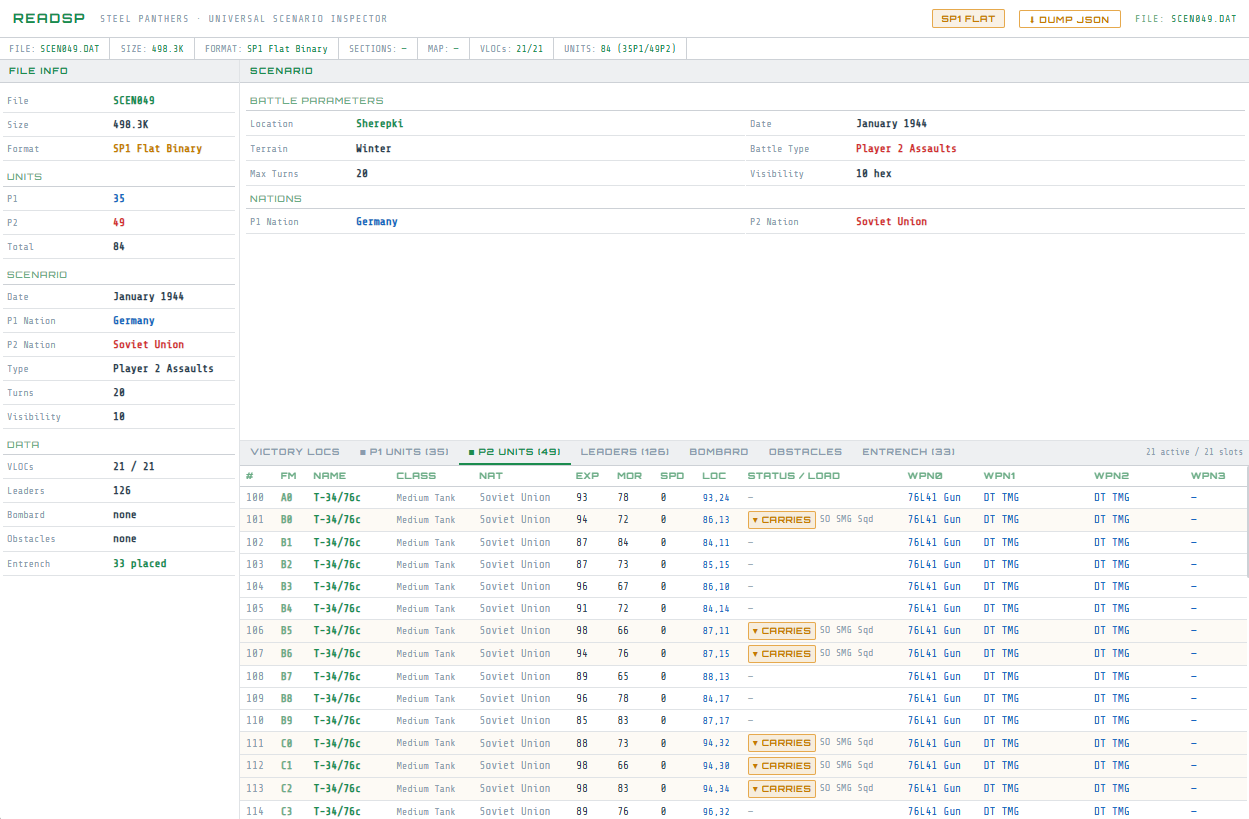
In the upper right corner there will be a button labelled
Push it and "Allow multiple files download" again.
In /DOWNLOADS you'll find:
[name].JSON
[name]_OOB.txt
The JSON file has all the useful data (so far) from the scenario extracted into a format that can be read by other programs; and the _OOB.txt file has useful stuff like:
|
────────────────────────────────────────────────── Formation A (4 units) (US Hmv Tac Cp/3, US HMV Tac Cp/4, US M2
HQ/Trp F, US M2 TAC CP/2) TOTAL: 24 units in 7 formations |
As well as giving you entrenchment information:
|
────────────────────────────────────────────────── P1 — 16 entrenched units P2 — 0 entrenched units Unoccupied entrenchments — 17 (owning side not
present) |
Load
NOTEThis tool relies on some very large .js files that must be loaded first: SPCAMO_UnitsMBT.js - 8.5 MB This (mostly) isn't a problem in 2026 since we're no longer on 56k dialup, but it's worth a note if you're trying to run it online -- you'll have to wait maybe a few seconds (depending on your internet connection) for all the .js files to load. |
Load the blank “Map Stub” spWW2scn0999.dat file that you created with SPCONVERT MAP v5.
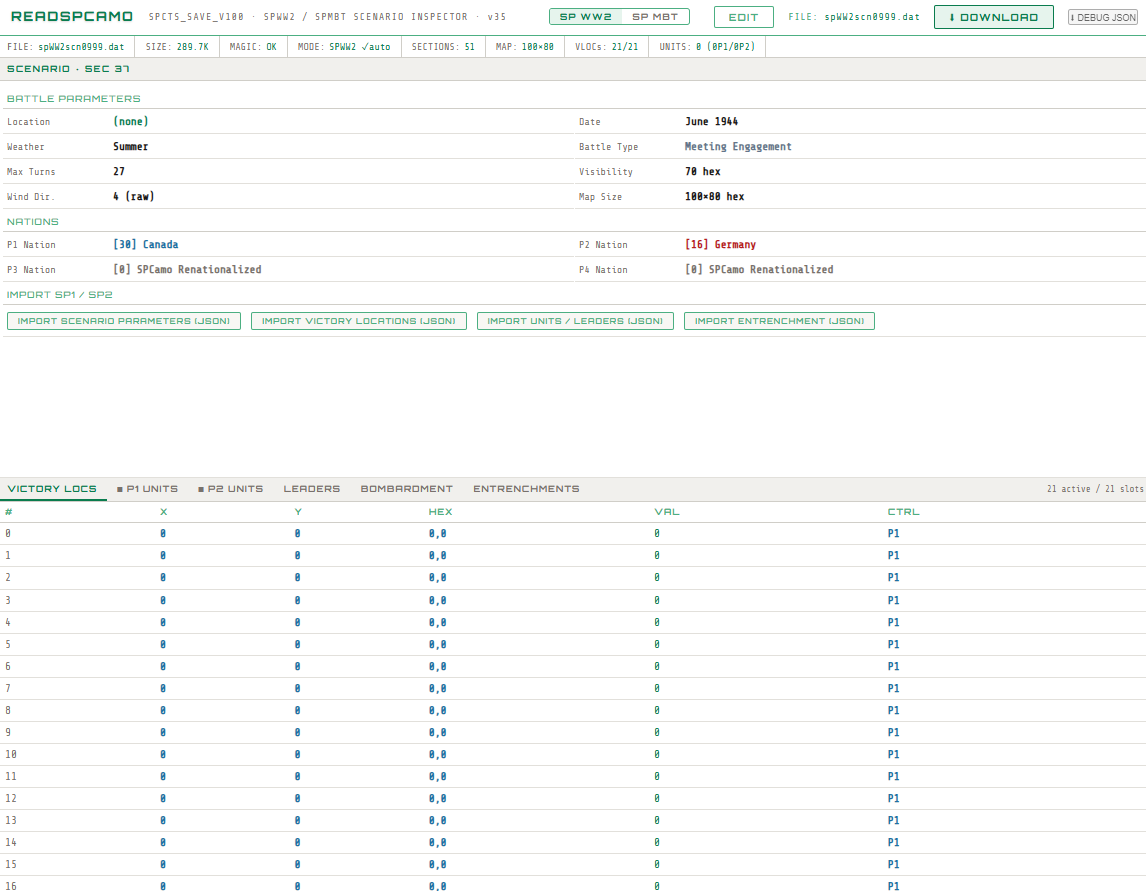
You'll see a lot of information, but the things that really concern us are the multiple buttons below the Import SP1 / SP2 header:
IMPORT SCENARIO PARAMETERS (JSON)
IMPORT VICTORY LOCATIONS (JSON)
IMPORT UNITS / LEADERS (JSON)
IMPORT ENTRENCHMENT (JSON)
Click on each one in turn, and select the JSON dump that we made earlier in your /DOWNLOADS directory; this will pull the data from the JSON and put it into the scenario.
Yes, I know it's tiresome clicking/loading each set of parameters one by one, but this approach let me "modularize" loading each individual section of the scenario dump into a SPCAMO game file; so I could work on one thing at a time.
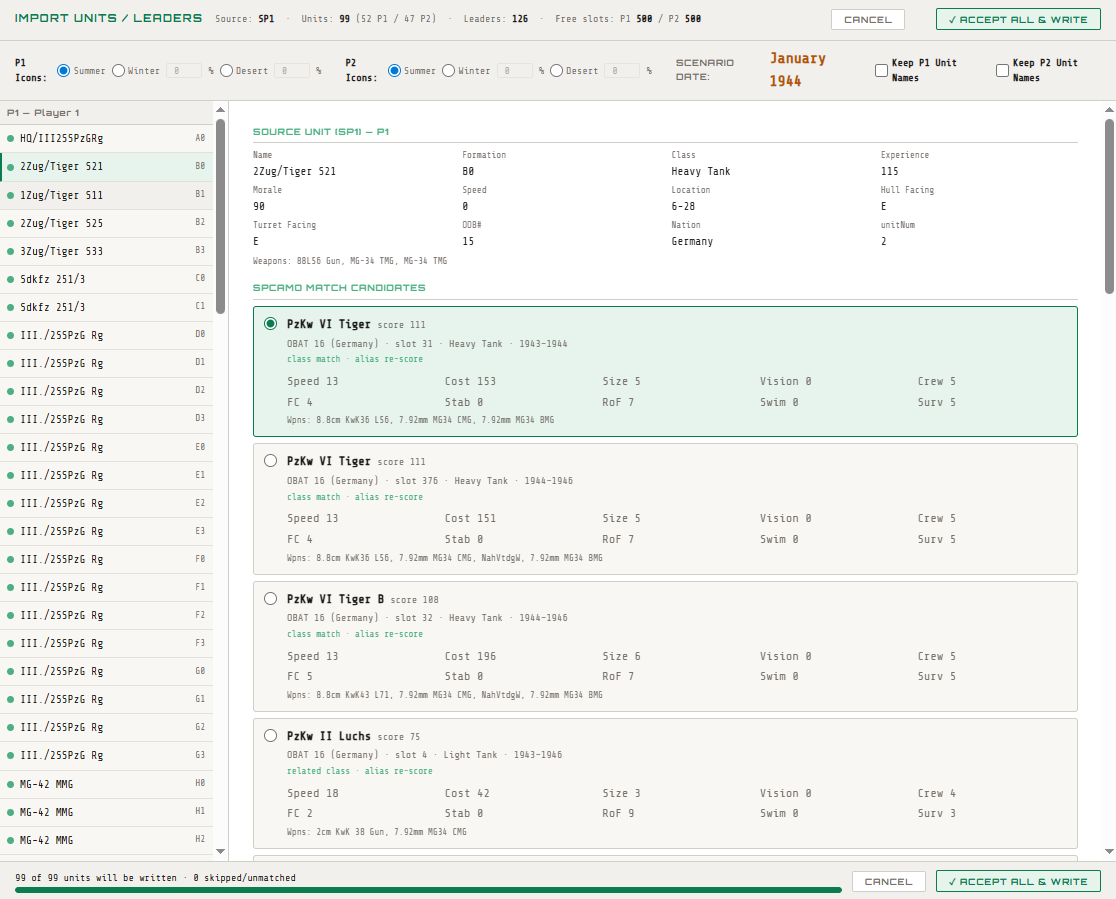
The IMPORT UNITS / LEADERS (JSON) one will bring up a pop up menu with suggestions for which SPCAMO unit to select for a converted unit -- I dumped the databases for SPWW2 and SPMBT into the following files:
SPCAMO_UnitsMBT.js
SPCAMO_Icons_MBT.js
SPCAMO_UnitsWW2.js
SPCAMO_Icons_WW2.js
As well as created a partial translation file in:
SPCAMO_UnitImport_Names.js
That should help reduce a lot of “cognitive” load in selecting what unit to use for the translation.
What all the features in the Unit Import Dialog Mean:
P1 Icons and P2 Icons -- these allow you to select whether to chose Summer, Winter or Desert Icons. The percentage dialog box next to each one represents how many units are NOT in those icons and instead are "summer" icons.
For example, you select P1 DESERT, and enter 25 into the dialog box next to the DESERT radio button.
This means that all of P1's units will be in Desert Icons, but 25% of them will be in Summer Icons; representing say, the early days of the Afrika Korps, with some units still painted in Panzergrau.
Likewise, this can be used to represent the "ragtag" look of German AFVs during late 1941 on the Eastern Front, with some tanks being painted in whitewash, while others still in Summer camouflage.
The two checkboxes "Keep P1 Unit Names" and "Keep P2 Unit Names" allow you to determine if you want to keep the unique unit names the original scenario creator may have picked -- i.e. "2Zug/Tiger 521" instead of "PzKw VI Tiger". The dual checkboxes are needed because sometimes only one side in a scenario may have unique names.
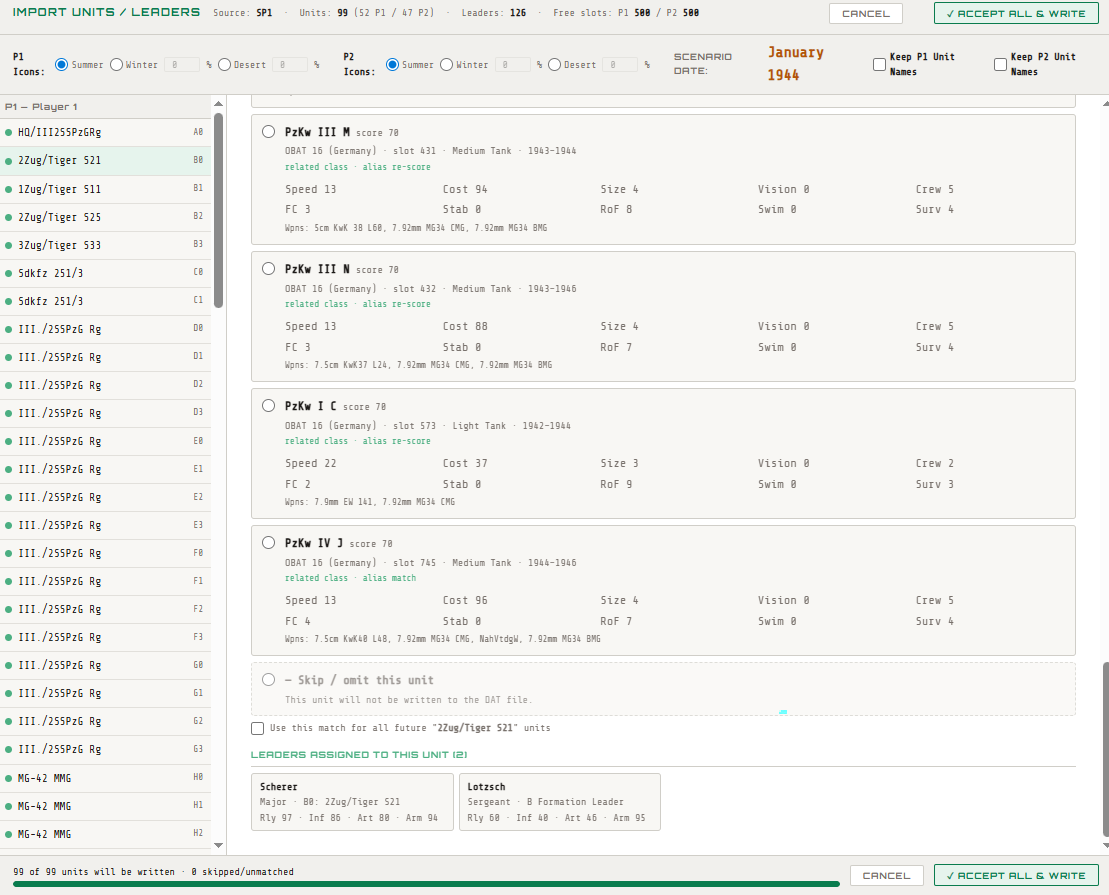
If you scroll all the way to the bottom of potential translated units; you will see a checkbox titled "Use this match for all future [$NAME] units."
This lets you pick the correct tank (or infantry) translation and then simply copy it over to all units of the same type within the scenario, simplifying conversions.
When you hit the “IMPORT ENTRENCHMENT (JSON)” button, and select your JSON, several popups will show up:
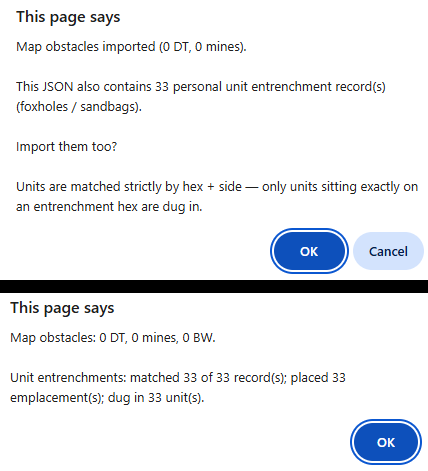
The reason I made this an optional choice (despite slowing down the conversion pipeline) is that I wanted to retain as many options for the user as possible, as I wasn't sure at the time if Claude had correctly implemented all the various places Entrenchment was buried inside the DAT file.
Once all of the JSONs have been imported; click on the
button in the upper right corner.
Your modified .DAT will be in your DOWNLOADS directory
At this point, you translate/edit the original scenario briefing from the SP1/SP2 scenario.
Many scenario briefings may be in a foreign language – use Google Translate (https://translate.google.com/) to convert them over to English.
In SPCAMO, * is used for line breaks; i.e.:
|
Sherepki, July 8, 1944* |
I also created a CMT editor; so you can edit the Scenario Name Files correctly, and avoid crashing your SPCAMO game when it encounters the scenario in the list:
Some examples of Scenario Names to stay within SPCAMO conventions:
Grudge Match at Kapelsche Veer 1/45
Taming the Tigers 8/44 (PBEM)
"They're Here! Reverse!" 2/41
Red Thunder: El Tibiri 11/62
Prosna Bridgehead 9/39 WW2+40
Sachon Ambush! 8/50
Once you've got your CMT, TXT and DAT all squared away, dump it in your SPWW2 / SPMBT Scenario Folder and play away.